Setup progress
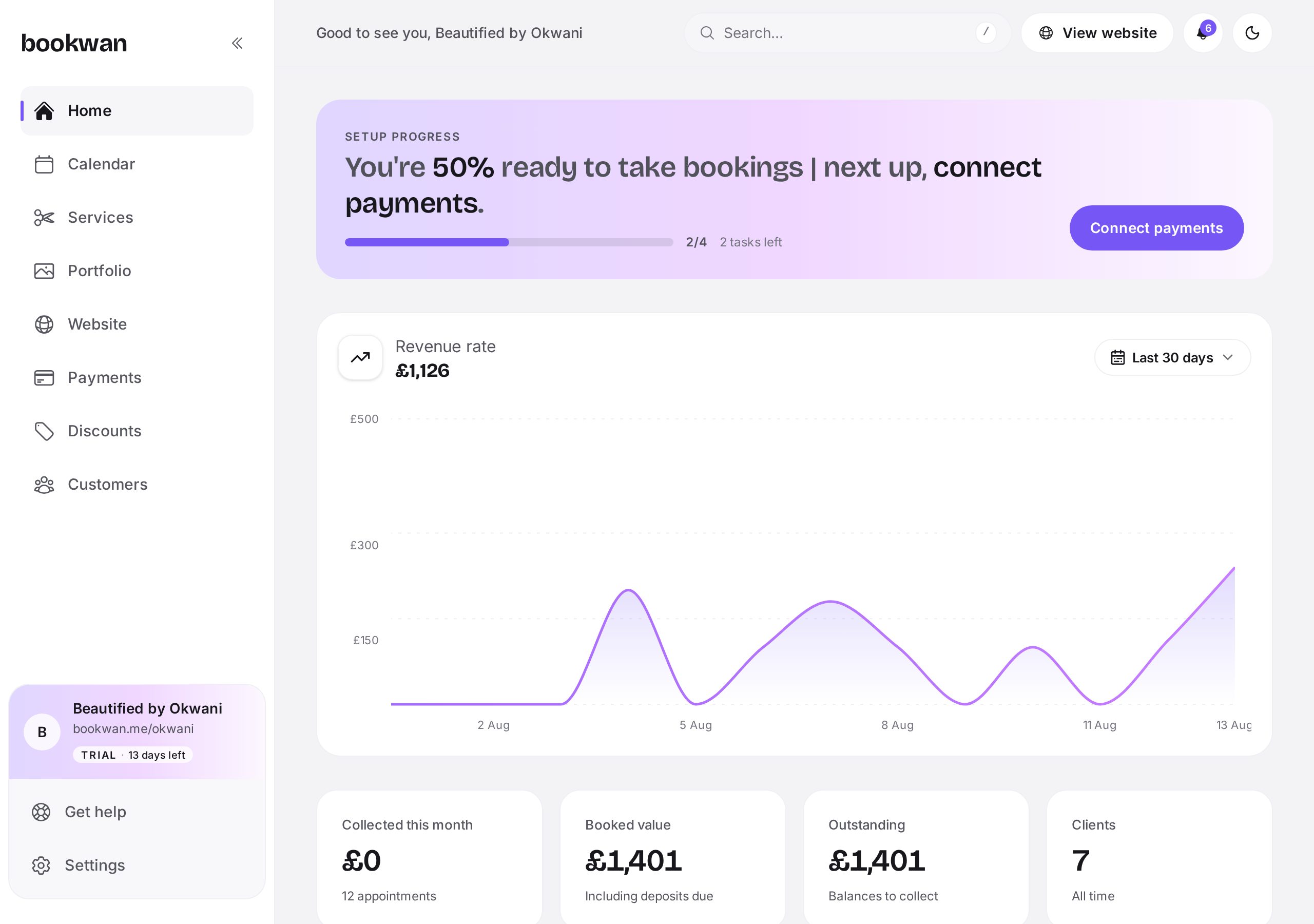
Until you can take bookings, the purple banner at the top tracks what is left: adding services, connecting payments, publishing your site. Tap the button in the banner and it takes you straight to the next task.
Your numbers
The chart shows revenue for the last 30 days by default, and you can switch the range from the dropdown on its right. Below it, the tiles split money into collected this month, total booked value, outstanding balances still to collect, and your all time client count.
Getting around
- Calendar: your diary, with every appointment and blocked time.
- Services: your menu, prices, durations and deposits.
- Portfolio: photo and video projects for your website.
- Website: build, preview and publish your booking site.
- Payments: transactions, payouts and your Stripe connection.
- Discounts: codes and offers you can share with clients.
- Customers: your client list, history and spend.
Put this into practice
Bookwan gives you a booking website, deposits, reminders and your calendar in one app. 15 days free, no card needed to start.
Get startedKeep reading
- How to add and price a serviceCreate a service with duration, price, deposit and staff, then add variations such as lengths or add-ons.
- How to manage your calendar and availabilitySet working hours, block time off, reschedule an appointment and see clashes side by side in your diary.
- How to build and publish your booking websitePick a theme, arrange blocks, preview on mobile and publish your booking site at your own handle.