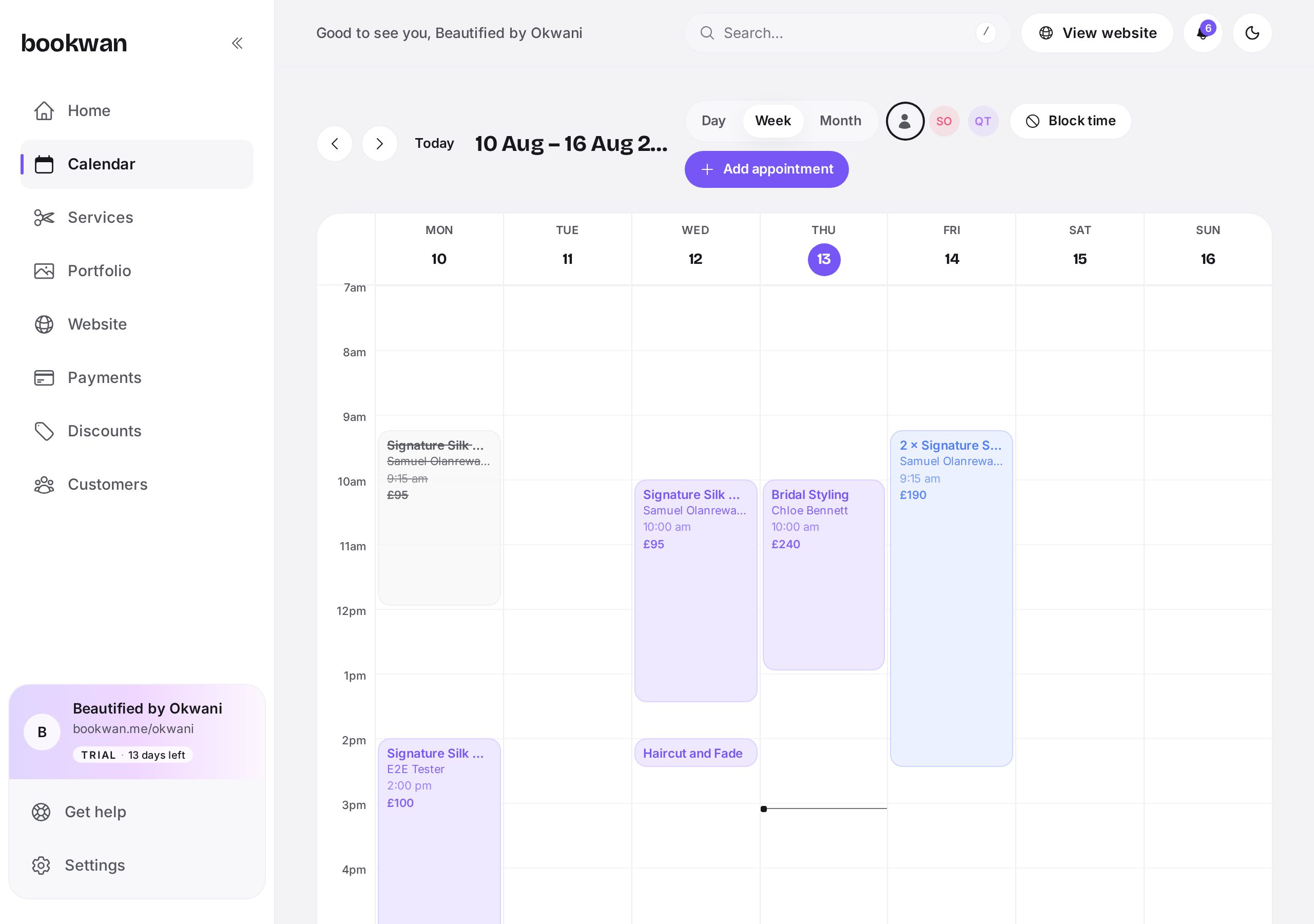
Set your working hours
Open the calendar and use Adjustments to set the days and hours you work. Clients only ever see slots inside those hours, minus anything already booked and any buffers.
Block time off
Tap any empty slot to add blocked time for a break, a school run or a holiday. Blocked time behaves like a booking, so nobody can take that slot.
Reschedule or cancel
- Tap the appointment to open its details.
- Choose Reschedule and pick the new date and time.
- Confirm; the client is emailed the new details and your connected calendar updates too.
Put this into practice
Bookwan gives you a booking website, deposits, reminders and your calendar in one app. 15 days free, no card needed to start.
Get startedKeep reading
- A tour of your Bookwan dashboardWhat every part of the dashboard does: setup progress, revenue, today's appointments and the side menu.
- How to add and price a serviceCreate a service with duration, price, deposit and staff, then add variations such as lengths or add-ons.
- How to build and publish your booking websitePick a theme, arrange blocks, preview on mobile and publish your booking site at your own handle.