- 1
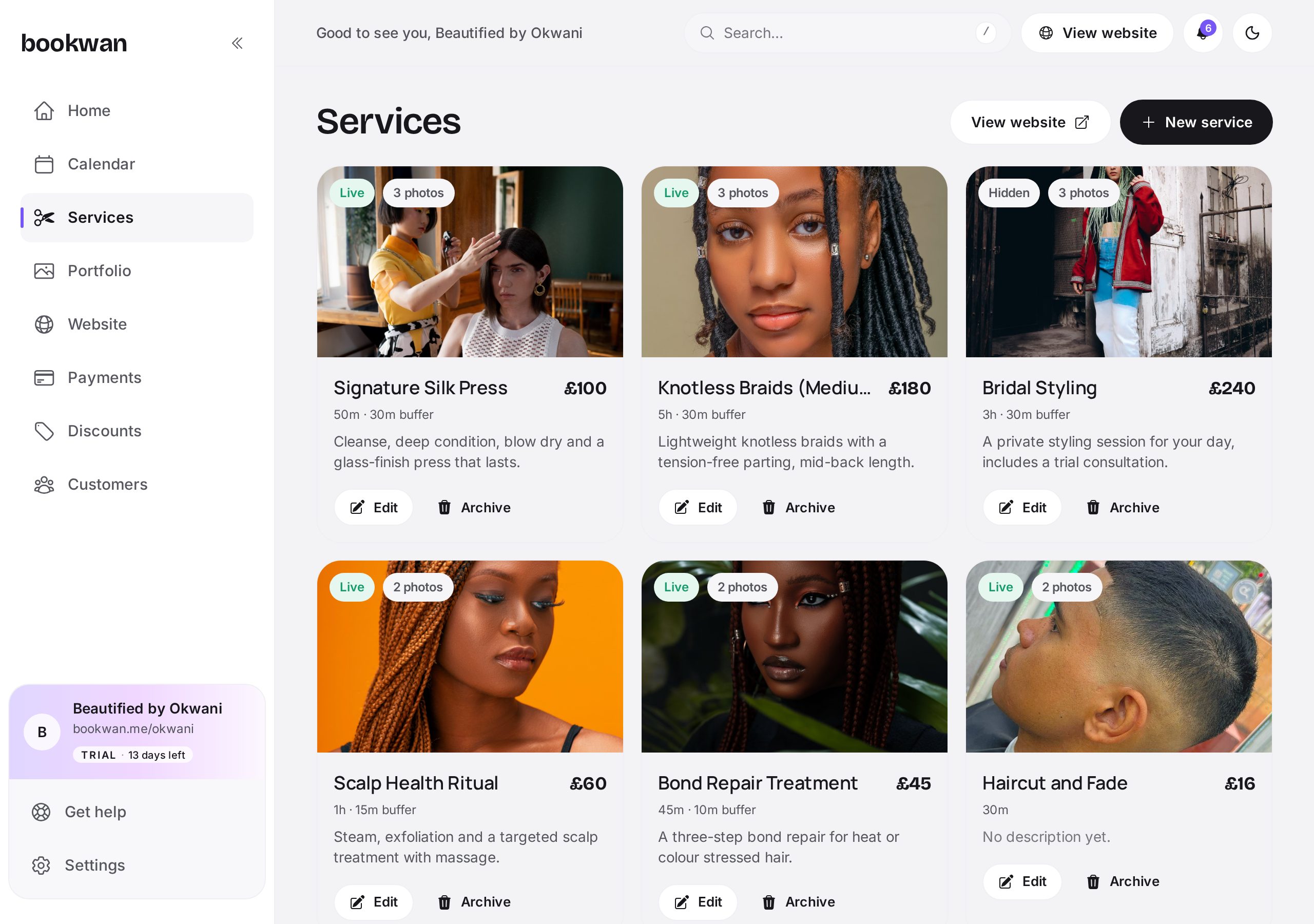
Open Services and tap New service
You will find Services in the side menu on desktop, or in the bottom navigation on your phone.
- 2
Name it the way clients say it
Use the wording your clients use in DMs, for example Knotless braids, medium, rather than an internal code.
- 3
Set duration and buffer
Duration is the time in your diary. Add a buffer if you need clean-down or travel time after the appointment.
- 4
Set price and deposit
Choose a fixed price or a from price, then decide how much is due at booking. Deposits are what stop no-shows.
- 5
Add variations
Lengths, sizes or finishes can be variations of one service, each with its own price and duration, so your menu stays short.
- 6
Save and check your site
New services appear on your booking site as soon as they are saved and your site is published.
- Keep the list under about a dozen top level services and use variations for the detail.
- Add a photo to your most booked services; they convert noticeably better.
- If a service always overruns, change the duration rather than running late.
Put this into practice
Bookwan gives you a booking website, deposits, reminders and your calendar in one app. 15 days free, no card needed to start.
Get startedKeep reading
- A tour of your Bookwan dashboardWhat every part of the dashboard does: setup progress, revenue, today's appointments and the side menu.
- How to manage your calendar and availabilitySet working hours, block time off, reschedule an appointment and see clashes side by side in your diary.
- How to build and publish your booking websitePick a theme, arrange blocks, preview on mobile and publish your booking site at your own handle.