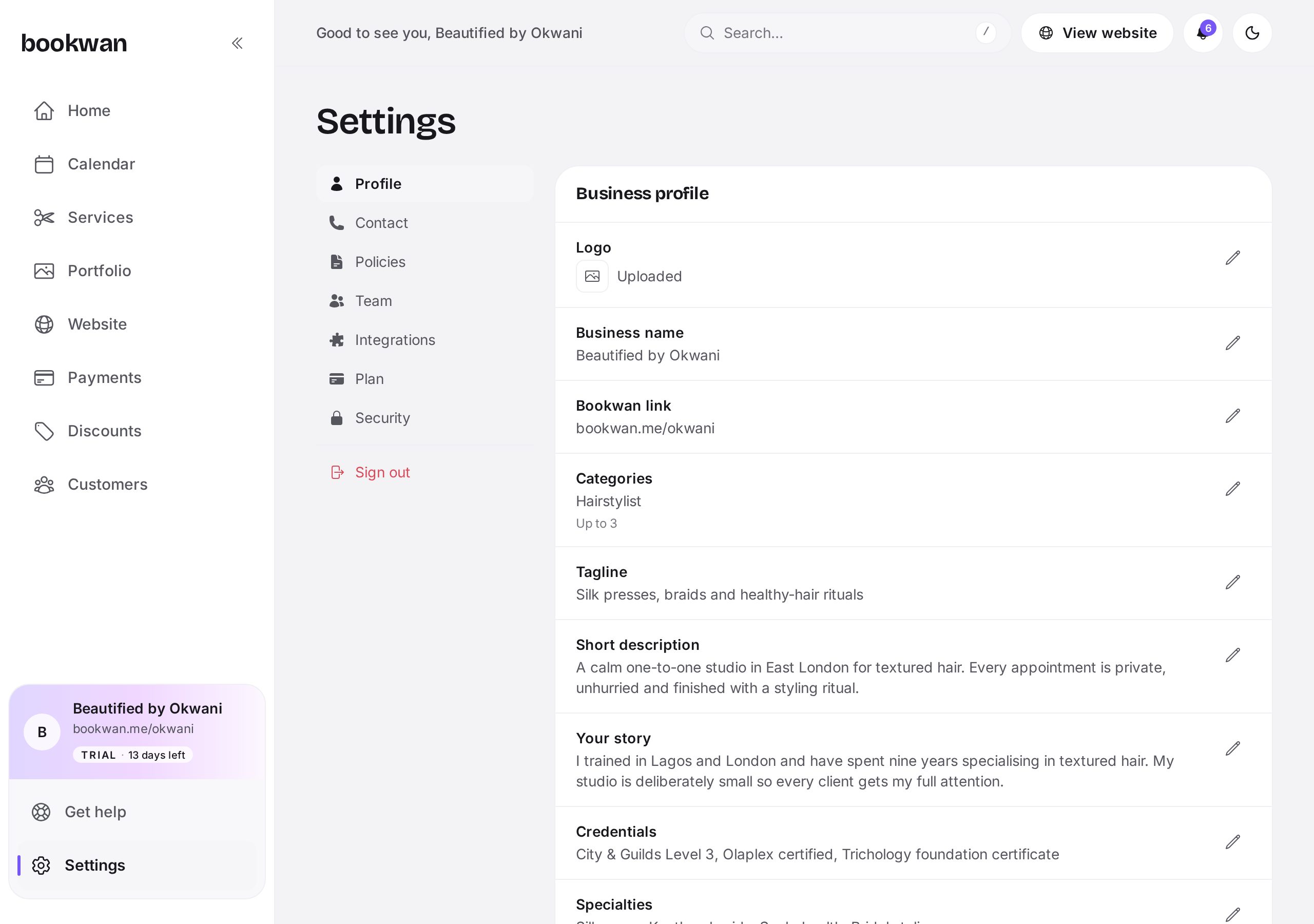
Profile
Your business name, handle, categories, up to three specialisms, location, contact details and social links. Anything here that appears on your website updates in both places at once.
Policies and FAQs
Deposit, cancellation and lateness policies, plus the questions clients always ask. They show in read mode with a pencil to edit, and appear on your booking site and in confirmation emails.
Notifications and add-ons
- Email confirmations and reminders are included in your plan.
- SMS reminders are an add-on at 2 per month on top of your subscription.
- WhatsApp reminders are an add-on at 3 per month.
Team
Invite staff by email, choose what they can see, and assign them to services so clients can pick who they book. An email that already owns a business cannot be reused for a staff invite, so invite team members on a fresh address.
Security and billing
Change your password, review privacy and terms, manage your card and subscription, and close your account if you ever need to.
Put this into practice
Bookwan gives you a booking website, deposits, reminders and your calendar in one app. 15 days free, no card needed to start.
Get startedKeep reading
- A tour of your Bookwan dashboardWhat every part of the dashboard does: setup progress, revenue, today's appointments and the side menu.
- How to add and price a serviceCreate a service with duration, price, deposit and staff, then add variations such as lengths or add-ons.
- How to manage your calendar and availabilitySet working hours, block time off, reschedule an appointment and see clashes side by side in your diary.